System Admin
- What is System Admin and who is System Admin ?
System Admin is controller or head of all the company and staff. System Admin has every authority. He can control everything going around. System Admin is only authorized to perform any task and assign Head of Company.
How to create System Admin ?
System Admin is by default created. There is no explicit way to create System Admin except by the system developer. System Admin Username and Password is provided by system developer. Once the System Admin is created and authorized System Admin can change the Username, Password and other to have self control.
What can System Admin perform ?
As mentioned earlier System Admin can perform all sorts of action like:
- Add company and owner of company
- Add home and home admin
- Add staff and staff details
- Add resident and resident information
But for the ease, work is distributed and it’s better that the System Admin take control over every action mentioned above but particularly perform Addition of company and company owner
- How to add Company by System Admin ?
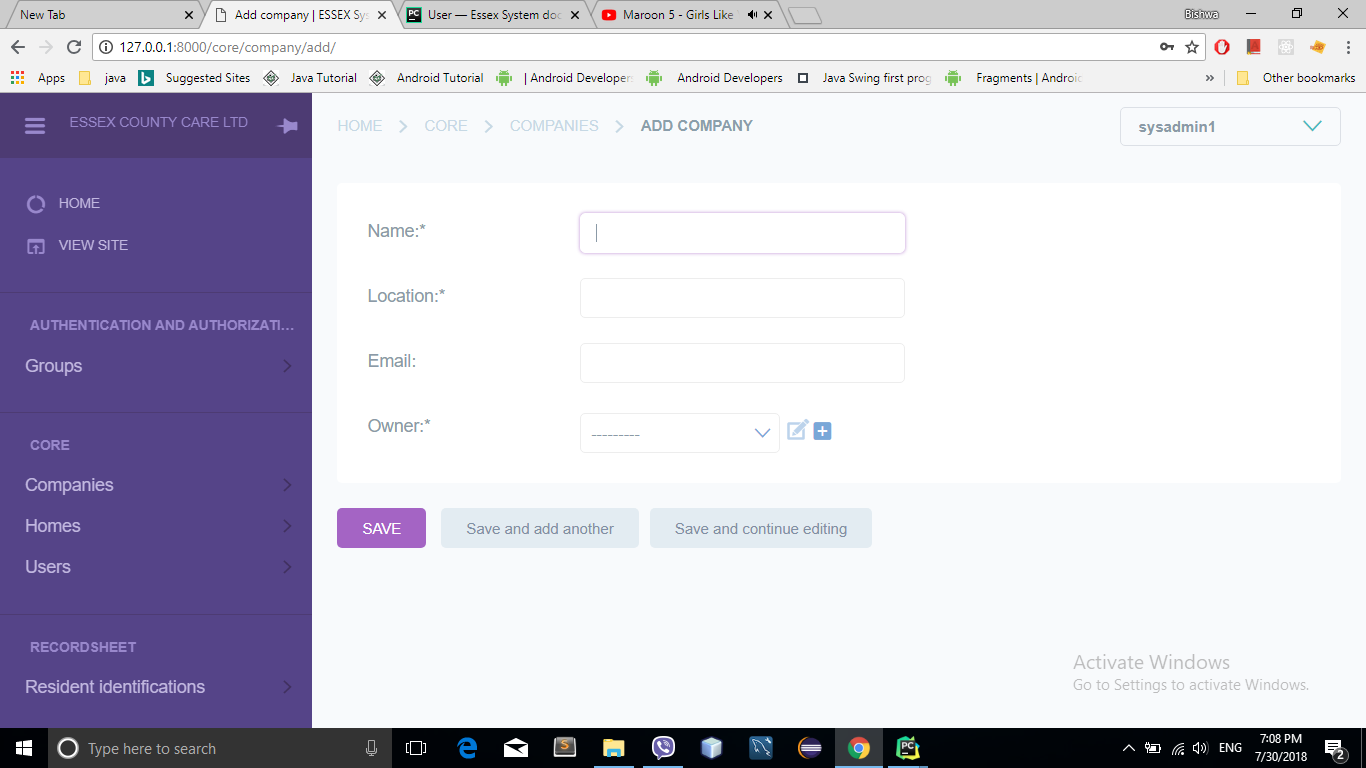
- Follow the instruction as depicted below to add Company.
Note
Field marked with * are must be filled field. They can’t be left empty or null.
- Add the company name in the Name field.
- Add the company’s location in the Location field.
- Add the company’s email in the Email field.
- Add owner/ Head of Company of company in the Owner field.
Add owner/Head of Company of company
Below depicted screen shot shows the procedure to add Head of Company
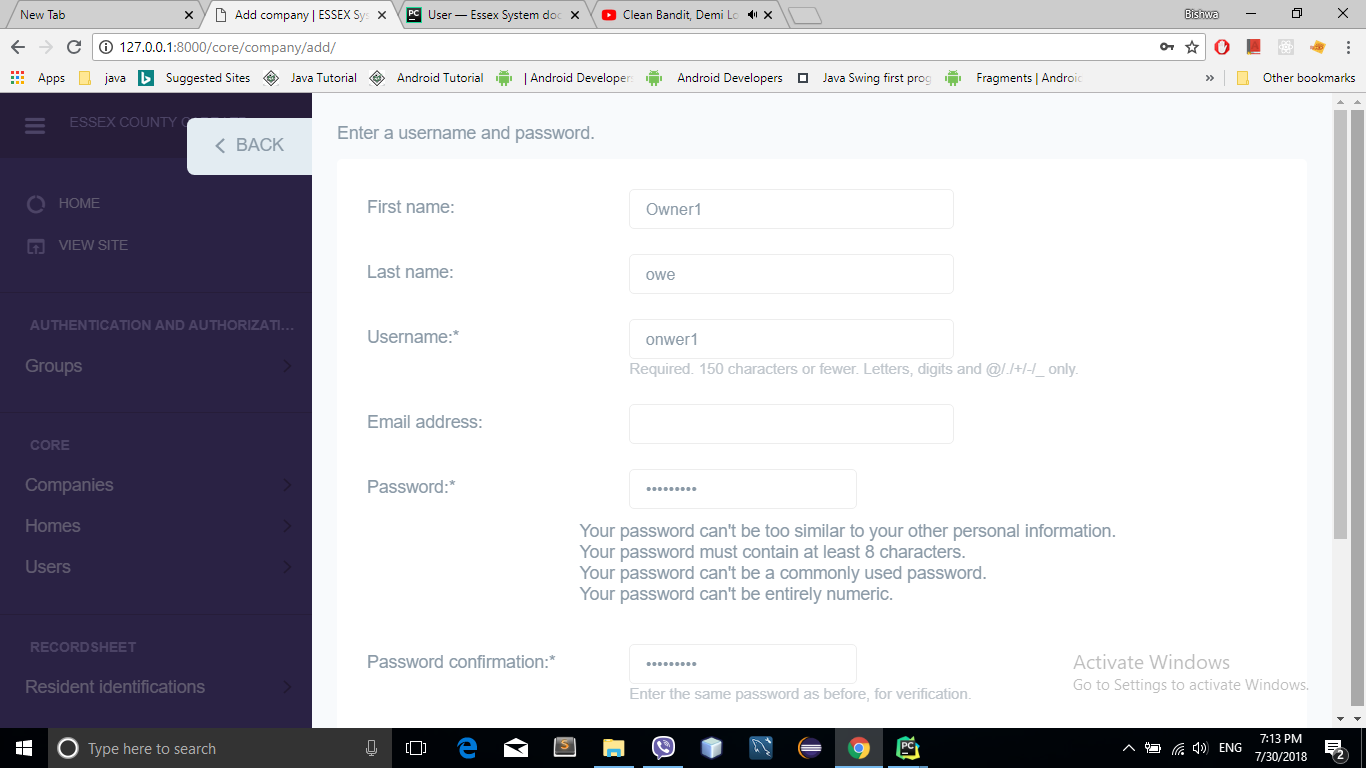
Add the Owner first name in the name field.
Add the Owner last name in the name field.
Add the Owner username in the name field.
Add the Owner password in the name field.
You can’t add Company, it will be added automatically.
You can’t add Home, it will be added automatically.
Click Save
- Now Owner is created for the company so you are ready to go and the default Username and Password of Head of Company is given by the System Admin. Head of Company later can change it as per the personal interest.
- Save
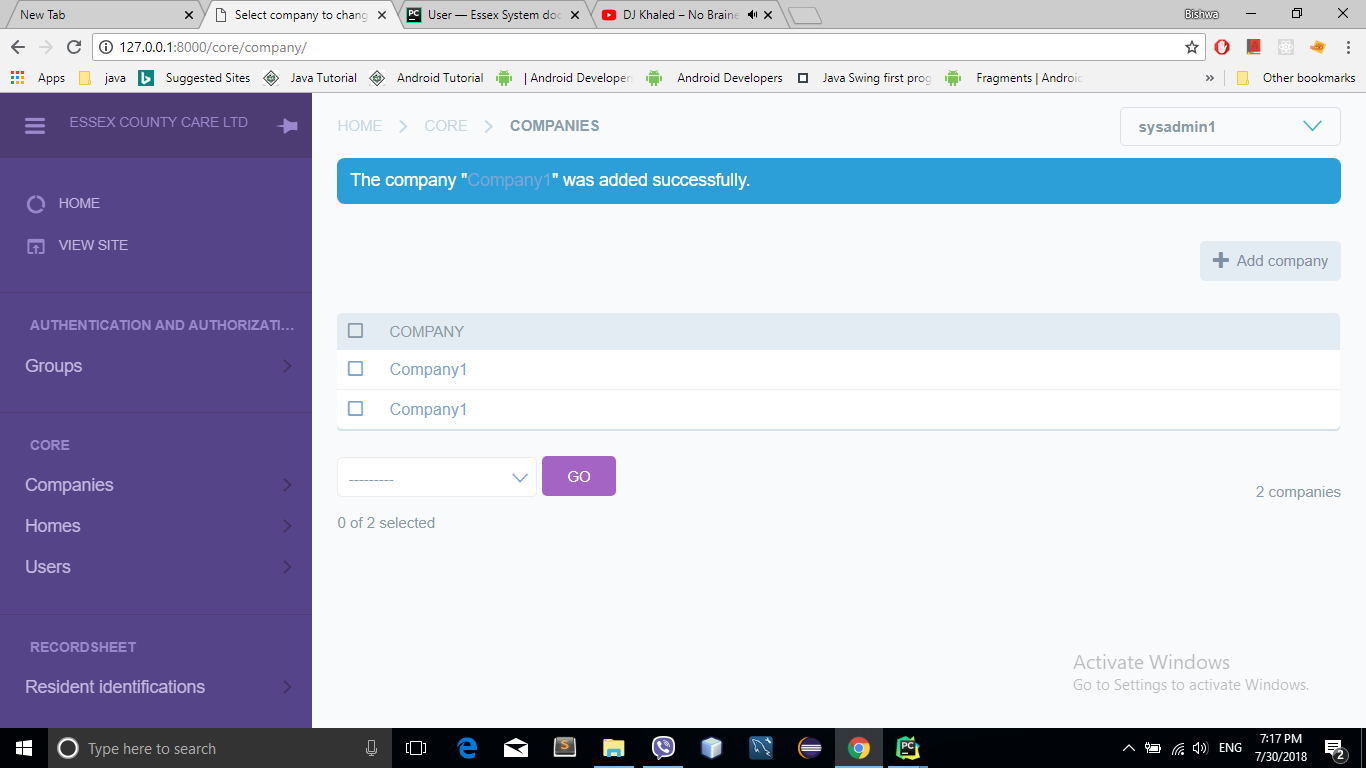
- Company is successfully created
- Now company is listed:
Change Password
- Follow the instruction below to Change Password
Click the drop down menu
- Go to Change password
-
Enter the Old Password in the Old Password field. Old Password is given by default.
Enter the New Password in the New Password field.
Confirm by entering the New Password again in the Confirmation field.
Press the Change my password button.
Congratulation your password is changed successfully.